

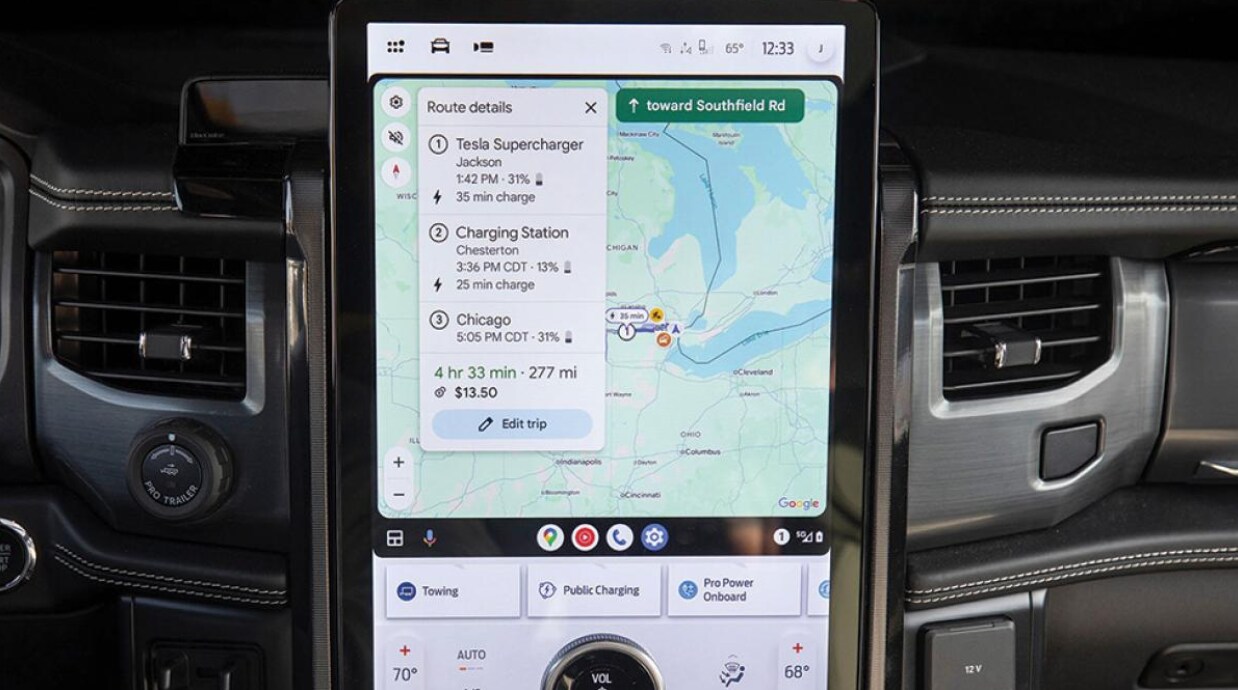
Your phone already runs your day, so it makes sense to put it on your dashboard too. Android Auto brings your maps, music, and messages to your Ford's touchscreen in a simple, driver-friendly layout. If you're driving a Ford Explorer, an F-150, or a Bronco, you're already set up for it.
This guide shows you how to connect your phone, which apps are worth using, and how to fix common hiccups. It's written for drivers around Park City, Salt Lake City, and Heber City who spend real time behind the wheel. Here's everything you need to get rolling.
What Is Android Auto?
Android Auto is Google's app that mirrors key phone features onto your car display. Your Ford's screen, also called the head unit, shows big icons and simple menus built for driving. You get navigation, calls, music, and messages without picking up your phone.
On most phones running Android 10 or newer, the Android Auto app comes built in. Older phones can download it from the Google Play Store. Either way, keep it updated for the smoothest experience.
Which Fords Support Android Auto?
Nearly every new Ford supports Android Auto, and most connect wirelessly. Here's a quick look at the lineup:
- SYNC 4 models: The F-150 and New Ford Bronco run SYNC 4 with wireless Android Auto.
- Ford Digital Experience models: The Explorer and Expedition use Ford's newer, Google-powered infotainment system, and they still support wireless Android Auto and Apple CarPlay.
- Compact SUVs: The New Ford Bronco Sport supports Android Auto too, so smaller rigs get the same phone tech.
If your household has both Android and iPhone users, no problem. Ford's systems support Apple CarPlay as well, so everyone can connect.
What You'll Need Before You Start
Setup takes just a few minutes. Before you begin, make sure you have:
- An Android phone (Android 11 or newer works best for wireless Android Auto)
- Bluetooth and Wi-Fi turned on
- The latest version of the Android Auto app
- A quality USB cable as a backup for wired connections
How to Set Up Wireless Android Auto in Your Ford
Park your Ford first, since setup is easier with no distractions. Then follow these steps:
- Turn on Bluetooth and Wi-Fi on your phone.
- On your Ford's touchscreen, open the phone settings and choose to add a new phone.
- Select your Ford on your phone's Bluetooth list and confirm the pairing code on both screens.
- Accept the Android Auto prompts on your phone and the car display.
- Tap the Android Auto icon on your screen to launch it.
Some phones ask for a one-time USB cable connection before going wireless. After that first setup, your phone should connect on its own every time you start the car. Just get in, buckle up, and go.
Use Gemini and Voice Commands
Gemini replaced Google Assistant inside Android Auto in 2026. It understands the same basic voice commands, and it also handles more natural, conversational requests. Press the voice button on your steering wheel or say "Hey Google" to get started.
Try voice commands like these:
- "Navigate to Deer Valley."
- "What's my ETA?"
- "Read my latest messages."
- "Play my ski playlist on Spotify."
Voice control keeps your hands on the wheel and your eyes on the road. That matters on Parleys Canyon in a snowstorm.
Best Navigation Apps for Local Drives
Google Maps and Waze are the go-to navigation apps on Android Auto. Both give you live traffic alerts, so you can dodge backups on I-80 or ski-day traffic on SR-224. You can also share your ETA with friends meeting you at the trailhead.
Waze is great for crowd-sourced reports like crashes, road hazards, and speed traps. Google Maps shines for lane guidance and finding stops along your route. Lots of drivers keep both and switch based on the trip.
Music, Podcast, and Audiobook Apps
Android Auto supports a long list of media apps, so the drive to the Salt Lake City airport flies by. Popular compatible apps include:
- Spotify and YouTube Music for playlists and new releases
- TuneIn for live radio and sports
- Audible for your next audiobook
- Pocket Casts and other podcast apps for your favorite shows
Your Ford's infotainment system displays album art and simple controls. You can also use your steering wheel buttons to skip tracks or adjust the volume.
Messaging Apps Without the Distraction
Android Auto reads incoming texts out loud and lets you reply by voice. It works with SMS and popular messaging apps like WhatsApp and Telegram. You never have to type or look down at your phone.
This is a big safety win, especially on dark winter drives home from Kamas. Set up quick replies so you can answer with one tap or one sentence.
Quick Fixes for Common Problems
Even great tech has off days. If Android Auto acts up, try these steps:
- It won't connect wirelessly: Restart your phone, then forget and re-pair the vehicle in Bluetooth settings.
- It keeps dropping: Make sure Wi-Fi stays on, since wireless Android Auto uses it to stream.
- It's slow or glitchy: Update the Android Auto app and your phone's software.
- A wired connection fails: Swap in a different USB cable, because cheap cables often cause trouble.
- An app is missing: Only compatible apps show up, so check that yours supports Android Auto.
Ford's systems also get over-the-air updates, which can improve phone connections over time. If problems keep happening, our staff is glad to help you sort it out.
Try It on a Test Drive
The best way to see how Android Auto fits your routine is to try it in person. Bring your phone when you visit Karl Malone Ford Park City, and we'll pair it before you pull out of the lot. Drivers from Midway, Coalville, and Salt Lake City can schedule a test drive and take their own playlist along for the ride.
Frequently Asked Questions
Do I need to download the Android Auto app?
Most phones running Android 10 or newer have it built in. Older phones can download it free from the Google Play Store.
Is wireless Android Auto standard in new Fords?
Most new Fords support wireless Android Auto, including models with SYNC 4 and the Ford Digital Experience. Our team can confirm the details on any vehicle you're eyeing.
Does Android Auto still use Google Assistant?
No. Gemini replaced Google Assistant in Android Auto in 2026, and you can still wake it with "Hey Google" or your steering wheel voice button.
Can I use Waze and Google Maps with Android Auto?
Yes. Both apps work on Android Auto and give you live traffic alerts, rerouting, and ETA sharing.
Why does my Android Auto keep disconnecting?
The usual causes are Wi-Fi being turned off, outdated software, or a worn USB cable. Re-pairing your phone usually fixes it.
